In advance: We will be happy to support you in fine-tuning the application and, if necessary, look for further options to meet your needs. Please contact the support team using the contact form on our website.
The (de)activation of functions and display areas is made via the ‘Web.config’ file in the installation directory of lexiCan +WEB, i.e. usually
C:\Programme\lexiCan +WEB\Web.config.
You can edit the file with an editor such as Notepad. It contains standardized XML code, the design of which must follow certain rules. Changes should therefore be made with caution and as accurately as possible. We recommend to make a backup copy of the file before each change.
In the ‘<appSettings>’ section, you can (de)activate functions and display areas of +WEB.
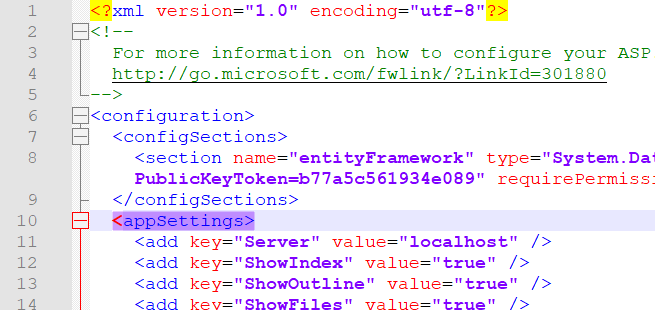
The keys defined in grey are without function/relevance and may only be changed after consultation with the lexiCan Support Team.
Each entry has a ‘key’ and a ‘value’. Depending on which value a key has, the respective representation and/or functionality changes. The following table lists the meaning of the individual keys in sequence and refers to detailed descriptions where necessary.
|
Key |
Meaning |
Possible Values |
|
Server name (if lexiCan Server and web server are operated on different machines) |
|
Server |
Address (DNS or IP) of the lexiCan server |
e.g. localhost, lexserver oder 10.2.100.102 |
|
Navigation see Settings for navigation |
|
ShowIndex |
||
|
ShowOutline |
||
|
ShowFiles |
||
|
ShowReferences |
||
|
ShowTags |
|
Overview page for selecting projects (may not be required for direct addressing) |
|
ProjectListEnabled |
Display of the overview page for the selection of projects |
true or false |
|
System language |
|
ShowLanguageMenuItem |
Menu for manual language selection |
true or false |
|
DefaultLanguage |
ISO code of the default language (automatic language adjustment to the language of the web browser if value="") |
empty, en, de, fr, it |
|
Various |
|
UseInlineImages |
without function |
|
|
DefaultProjectId |
without function |
|
|
IndexPageSize |
without function |
|
|
LoadOutlineOnDemand |
||
|
SearchMode |
Setting of the full text search regarding the handling of several search terms |
all: AND combination any: OR combination exact: definite string |
|
LogFilename |
Name and storage location of LOG-file |
|
|
LogLevel |
LOG-mode |
info, warn, debug |
|
CustomStyleSheet |
Name and storage location of CSS-file in case of individual layout changes |
|
|
DXStyleSheet |
without function |
|
|
CustomLogo |
Name and storage location of Logo-file in case of individual layout changes |
|
|
NavigationWidth |
||
|
ShowFilePreview |
||
|
DownloadNetworkFiles |
|
Table of content siehe Settings for the automatic table of contents |
|
AutoGenerateTableOfContent |
||
|
TableOfContentMinimumStructureLevel |
||
|
TableOfContentMaximumStructureLevel |
|
Various |
|
AllowSharing |
Display of button to share content via social media or e-mail |
true or false |
|
ShowDocumentFilePreview |
without function |
|
|
AllowMultipleDefaultProjectsByHost |
see Special: Direct addressing of projects via own URL addresses |
|
|
DefaultProjectID_p.mydomain.com |
see Special: Direct addressing of projects via own URL addresses |
|
|
UseIndexGrid |
For projects with a very, very large number of articles, you can switch to another component for the index. This component does not load the articles all at once, but only en bloc as needed. |
true or false |
|
OpenFileLinkDetails |
||
|
ShowMediaFileLinks |
||
|
EnableSidebarToggle |
||
|
webpages:Version |
internal function |
|
|
webpages:Enabled |
internal function |
|
|
ClientValidationEnabled |
internal function |
|
|
UnobstrusiveJavaScriptEnabled |
internal function |
|
|
PreserveLoginUrl |
internal function |
|
|
autoFormsAuthentication |
internal function |
|
|
enableSimpleMembership |
internal function |
|
|
aspnet:MaxJsonDeserializerMembers |
internal function |